
How to Set Up and Manage Holidays & Office Closures
Learn how to add public holidays or office closures so the Delivery Timer skips dispatch and/or delivery dates automatically.
Overview
The Holidays & Office Closures feature lets you define dates when your business is closed. On these dates, the timer will skip dispatch, delivery, or both — ensuring customers see accurate estimated delivery dates.
Holiday rules apply globally to the Default Timer and all Rules/Geolocations unless you specifically exempt them.
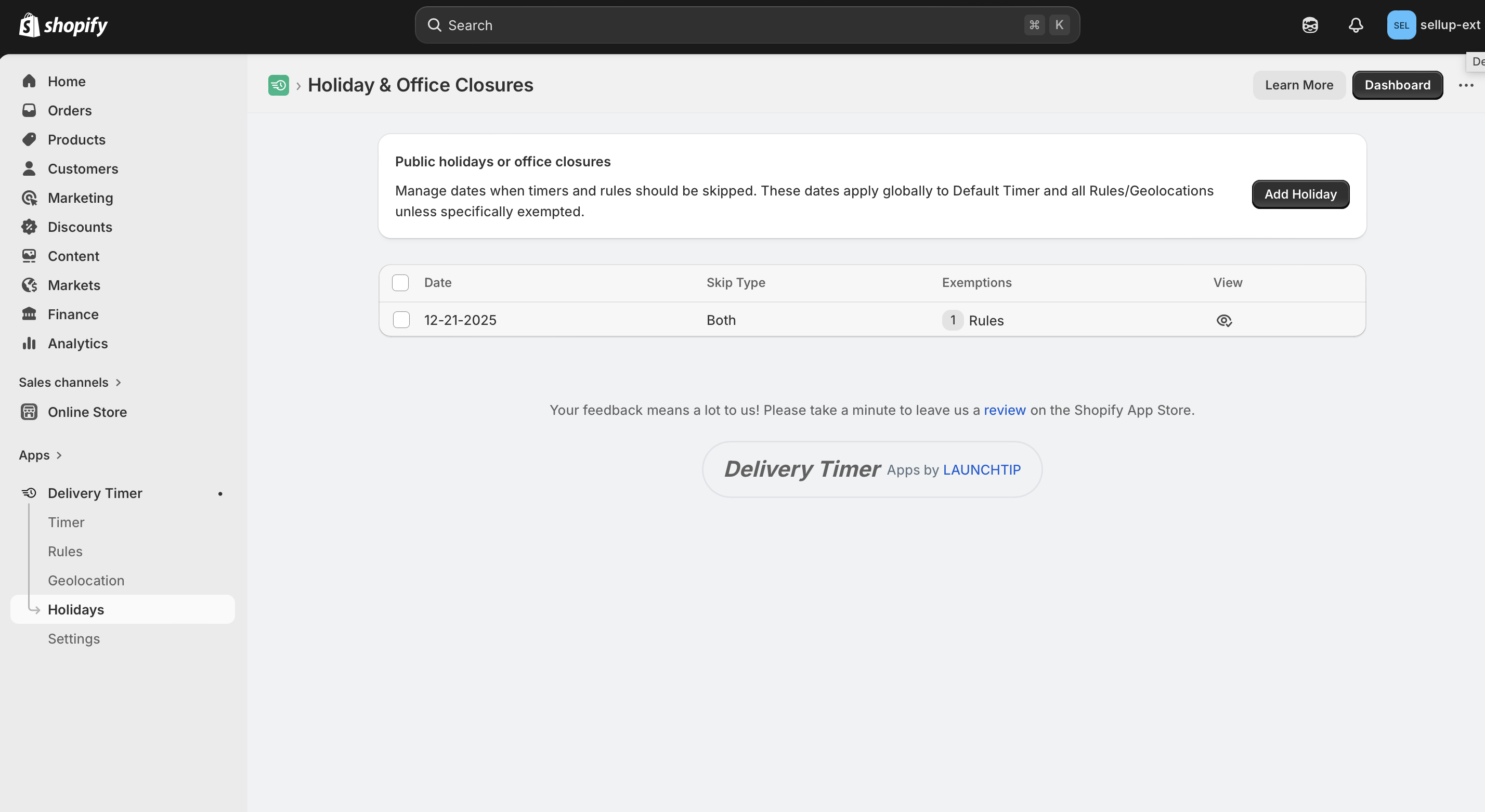
Adding a Holiday
- In your Shopify admin, go to Apps > Delivery Timer > Holidays.
- Click Add Holiday.
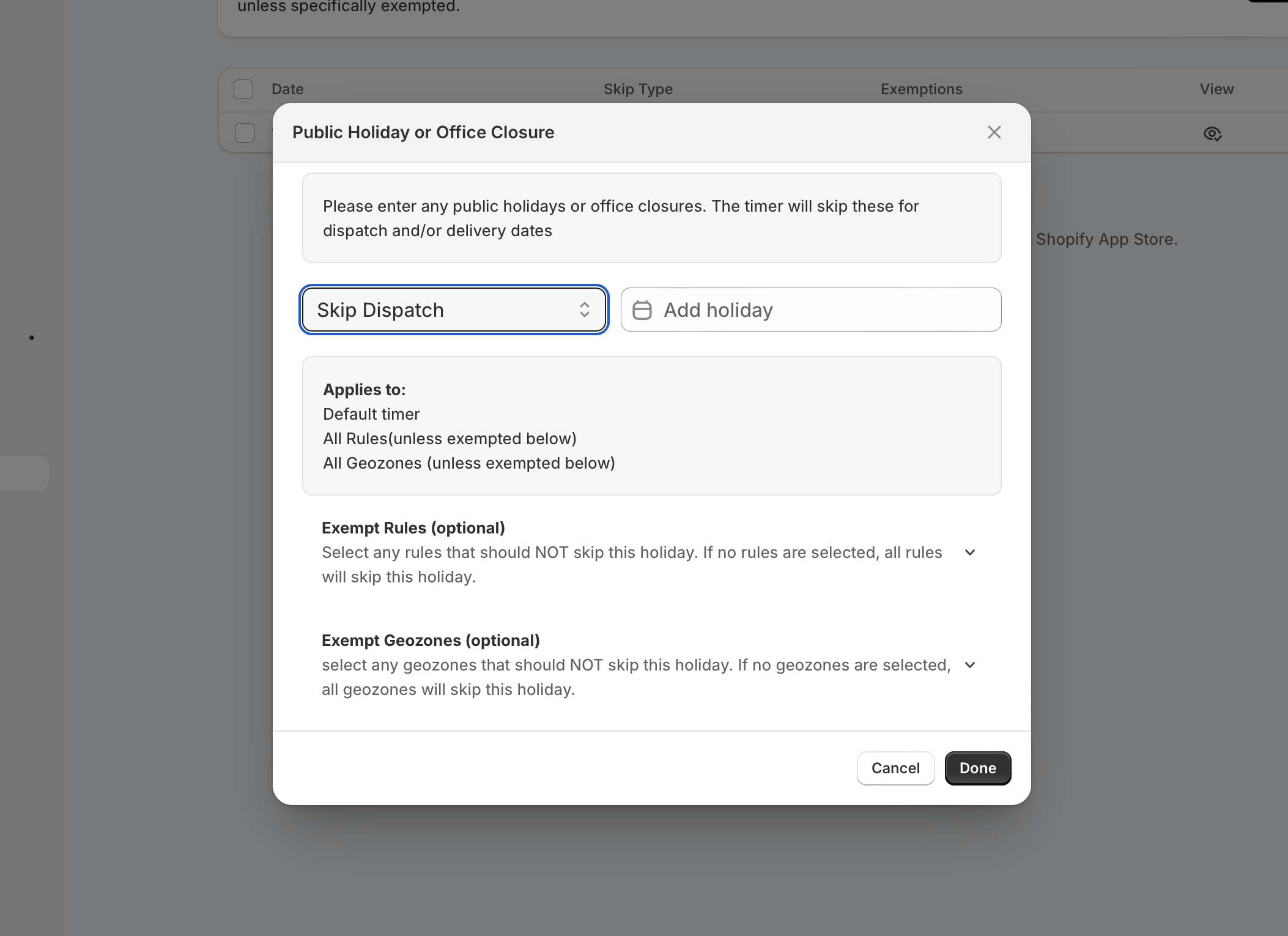
- In the Public Holiday or Office Closure modal, select the date using the Add holiday date picker.
- Choose a Skip Typefrom the dropdown:
- Skip Dispatch — skips the dispatch/shipping date only.
- Skip Delivery — skips the delivery date only.
- Skip Both — skips both dispatch and delivery dates.
- (Optional) Under Exempt Rules, select any rules that should not skip this holiday. If none are selected, all rules will skip it.
- (Optional) Under Exempt Geozones, select any geozones that should not skip this holiday. If none are selected, all geozones will skip it.
- Click Done to save the holiday.
Managing Existing Holidays
All saved holidays appear in a table on the Holidays page showing the Date, Skip Type, and any Exemptions. Click the view icon to review or edit a holiday's details.
Notes
Important: Holidays apply globally by default. Use the exemption options only if specific rules or geozones should remain active on a holiday.
Remember: Remember to add holidays ahead of time so the timer reflects accurate delivery estimates for your customers.