
How to set up Rules
Rules let you guide how your AI responds to customers — its tone, boundaries, and behavior. They're plain-English instructions the AI follows on every conversation. You'll find them under Dashboard › Settings › Rules.
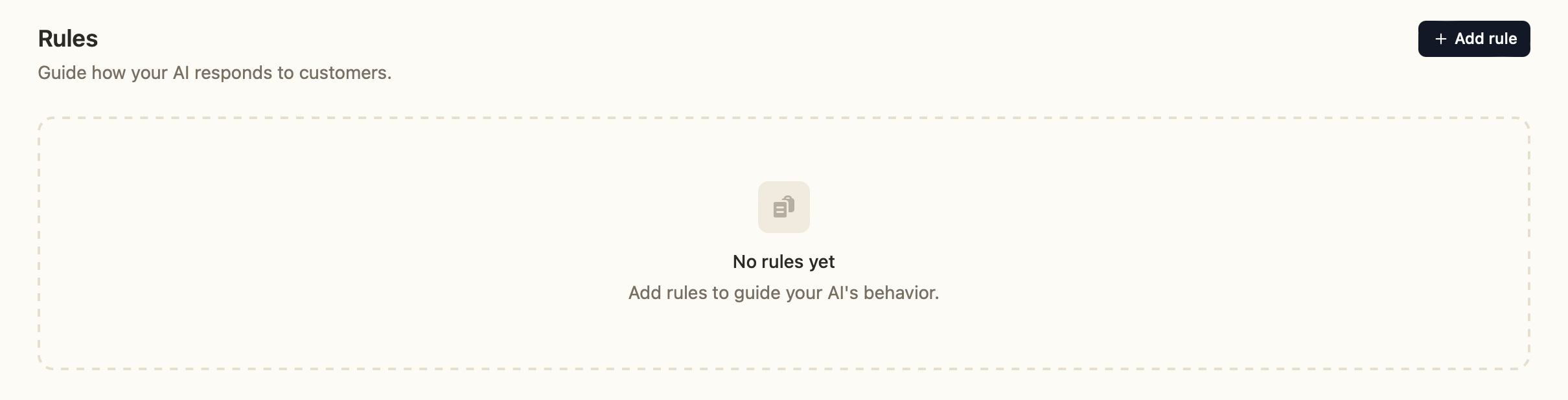
Adding a rule
- Go to Settings › Rules.
- Click Add rule.
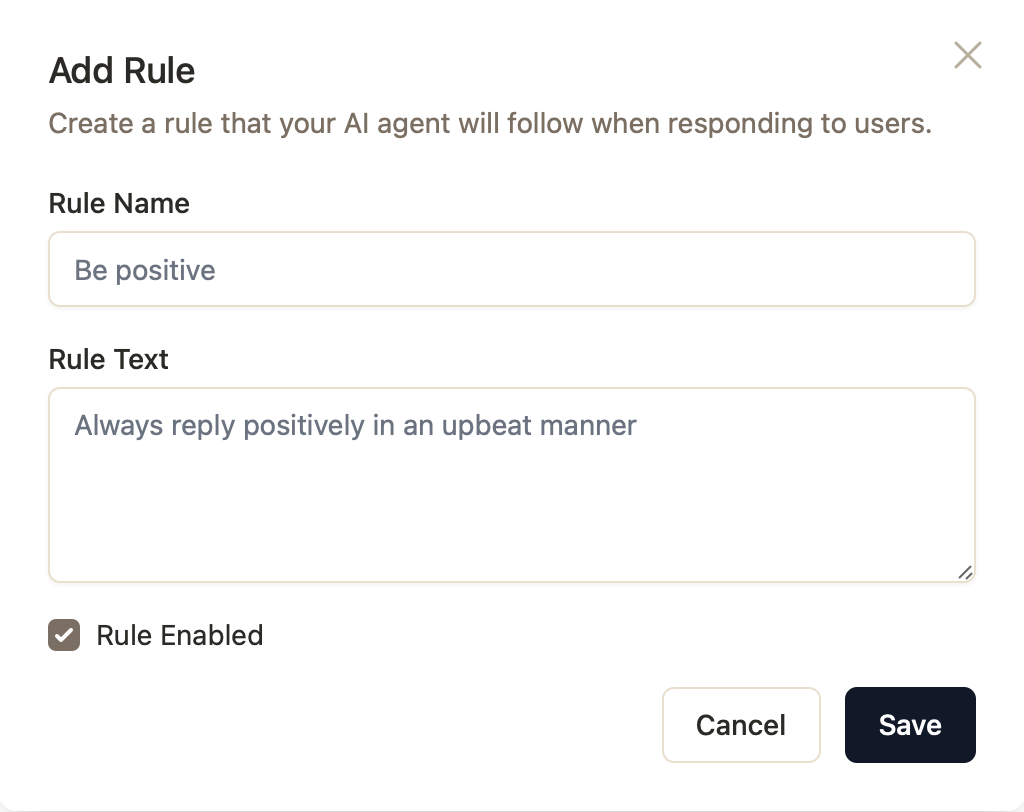
- Give it a short Rule Name (e.g. "Be positive").
- Write the Rule Text — the actual instruction (e.g. "Always reply positively in an upbeat manner").
- Leave Rule Enabled checked and click Save.
Managing rules
- Each rule shows an Active or Disabled status.
- Use the pause/play button to toggle a rule on or off without deleting it.
- Use the trash icon to remove a rule entirely.
Example rules
- Tone: "Always be warm, friendly, and concise. We use terms like 'hey' and 'sure'"
- Boundaries: "Never give medical or legal advice on our products — suggest contacting support instead."
- Brand voice: "Avoid jargon and keep answers under three sentences where possible."
- Promotions: "Only mention discounts if the customer asks about pricing.", "Mention our SAVE5 discount if the customer says they need a discount to checkout"
- Other use cases: Rules are very powerful. You can guide the assistant to act, provide information and guide customers in almost any situation. Draw attention to specific urls. products, collections or pages in a certain situation.
Tips
- Keep each rule focused on one behavior — several small rules work better than one long one.
- Write rules as clear, direct instructions, as if briefing a new support agent.
- Disable rather than delete when testing, so you can compare results.