
Styling your chat widget
You can match Chatkit to your brand in just a few clicks. All appearance settings live under Dashboard › Settings › Branding, with a live preview on the right so you can see changes before you save.
Brand color
This is the foundation for everything — the launcher button, message bubbles, and accents all build on it. Pick a color with the swatch or paste a hex code (e.g. #18181B), then click Save brand color. Available on every plan, including Free.
Widget vs. Chat Page
Use the toggle to switch between the two surfaces you can style:
- Widget — the floating chat that appears on your storefront.
- Chat Page — your standalone, full-page chat at its own URL (optional, most merchants don't need this)
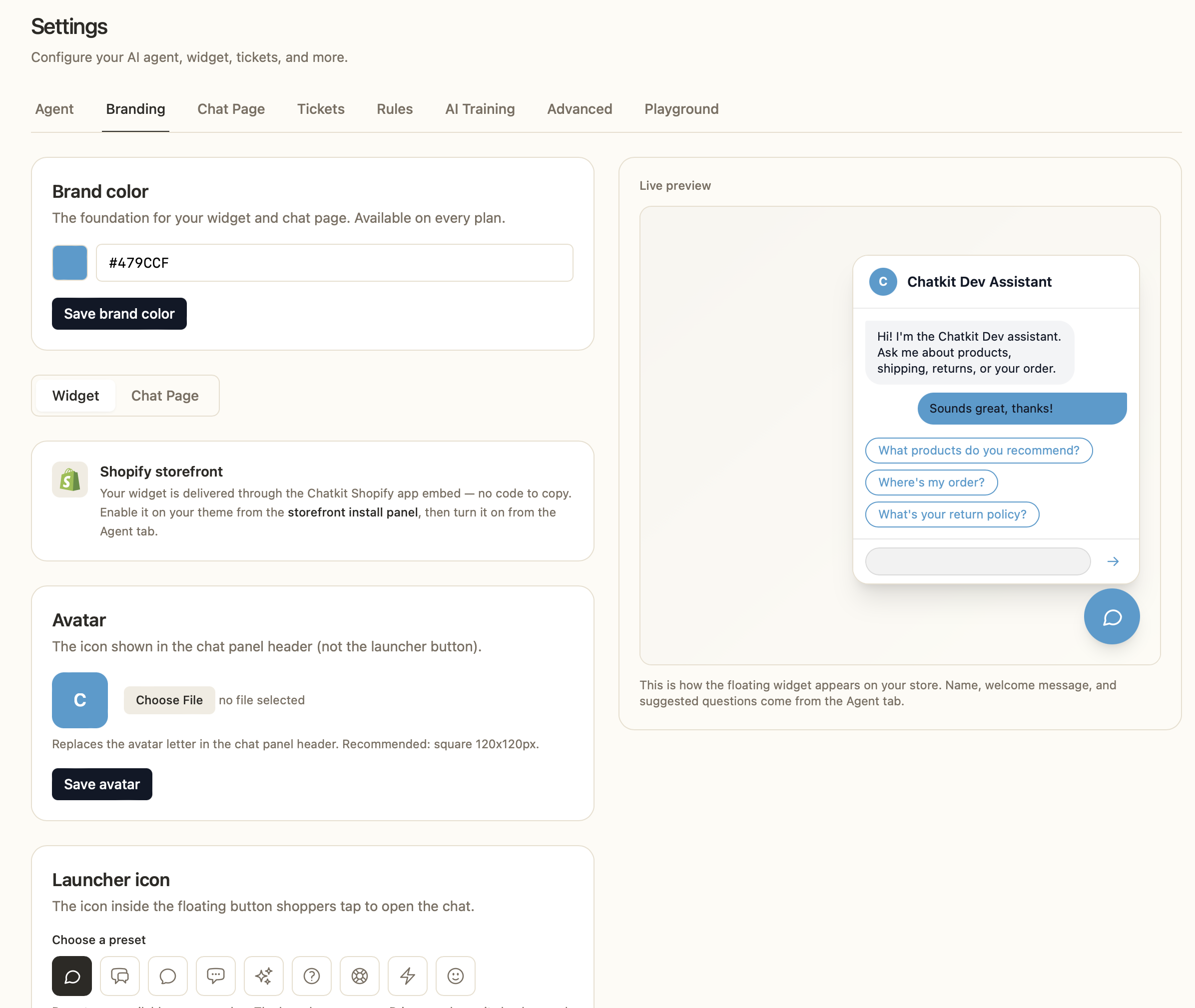
Styling the widget
- Launcher icon — the icon inside the floating button shoppers tap. Choose from a set of presets (free on all plans), or upload your own custom icon. The launcher uses your Primary color as its background. Recommended size: square 120x120px.
- Avatar — the icon shown in the chat panel header. By default it shows a letter; upload an image to replace it.
- Advanced branding — give the widget its own color palette: Primary, Background, Text, Customer bubble, Agent bubble, and their text colors. Leave any field blank to inherit from your brand color — text contrast is handled automatically.
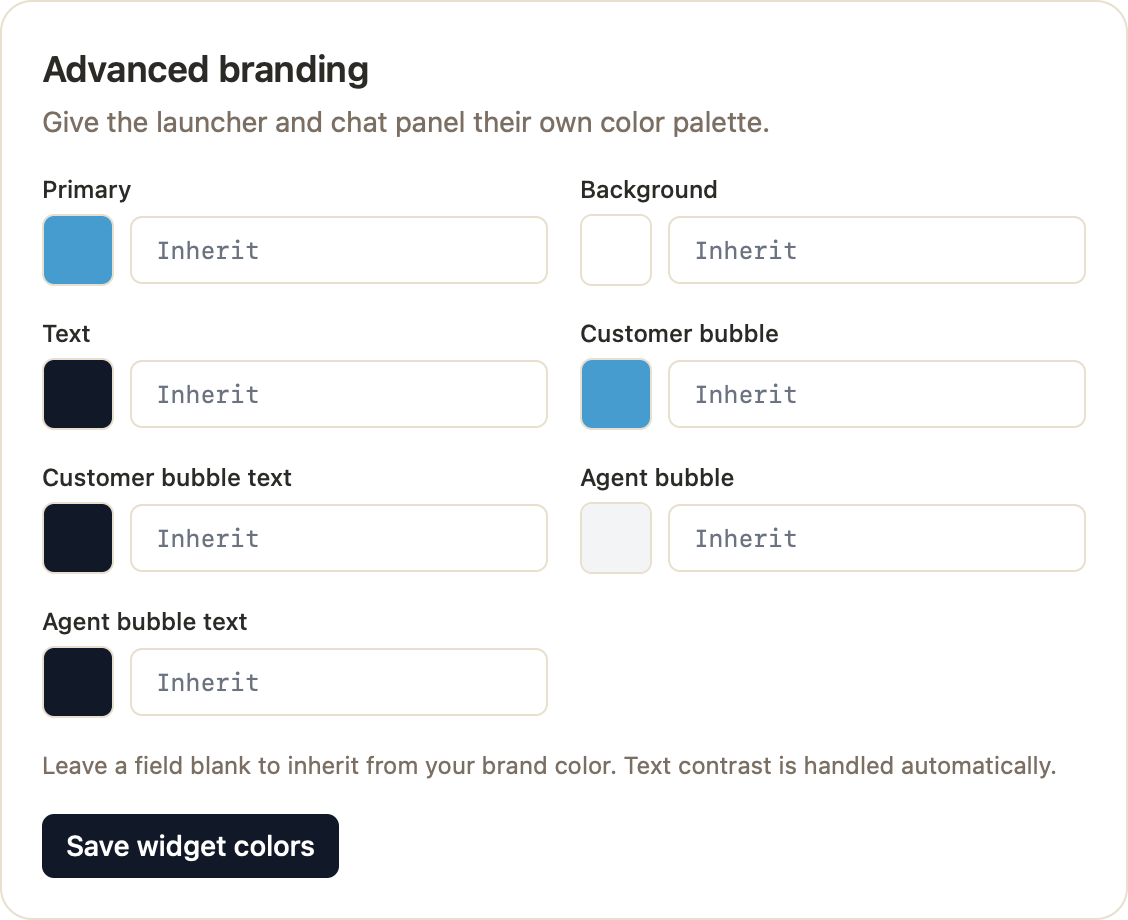
Styling the chat page
- Navigation link — add a link (text + URL) in the chat page header to send visitors back to your main site. Free on all plans.
- Custom logo — replace the text title in the header with your logo. Recommended: 120x40px PNG or SVG.
- Color palette — set Primary, Background, Text, Chat bubble, and Secondary colors, or leave blank to inherit from your brand color.
Custom CSS (advanced)
Need finer control over the chat page? Add your own CSS under Settings › Advanced › Custom CSS for pixel-level styling.
Where the text comes from
Colors and icons are set on the Branding tab, but your assistant's name, welcome message, and suggested questions are configured on the Agent tab.
What's free vs. paid
- Every plan: brand color, launcher icon presets, and the chat page navigation link.
- Starter and above: custom avatar, custom launcher upload, advanced widget & chat page colors, custom logo, custom CSS, and removing the Chatkit badge.
Don't forget to click Save on each section — the live preview updates instantly, but changes only go live once saved.