Learn how to add public holidays or office closures so the Delivery Timer skips dispatch and/or delivery dates automatically.
Overview
The Holidays & Office Closures feature lets you define dates when your business is closed. On these dates, the timer will skip dispatch, delivery, or both — ensuring customers see accurate estimated delivery dates.
Holiday rules apply globally to the Default Timer and all Rules/Geolocations unless you specifically exempt them.
Adding a Holiday
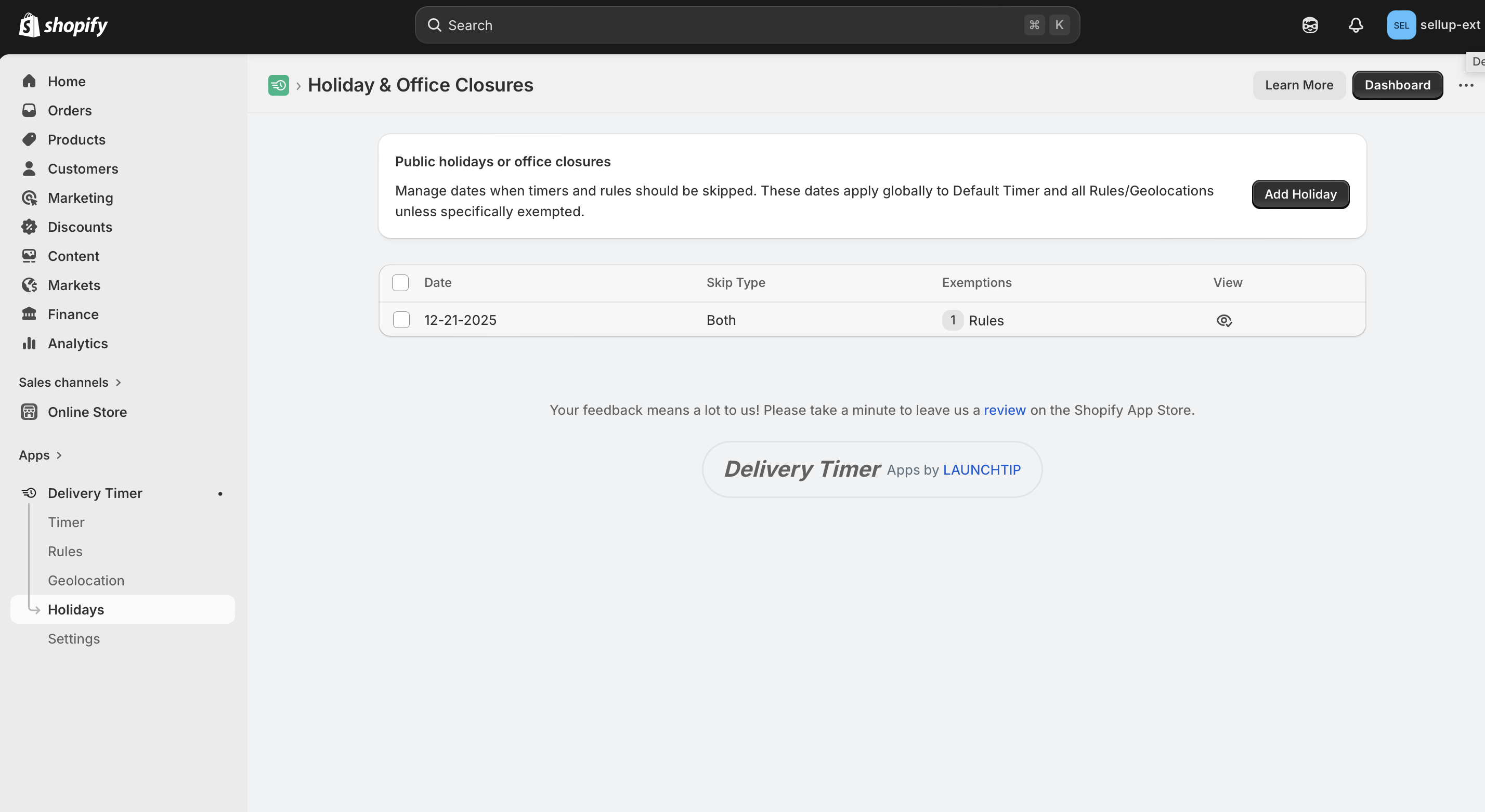
- In your Shopify admin, go to Apps > Delivery Timer > Holidays.
- Click Add Holiday.
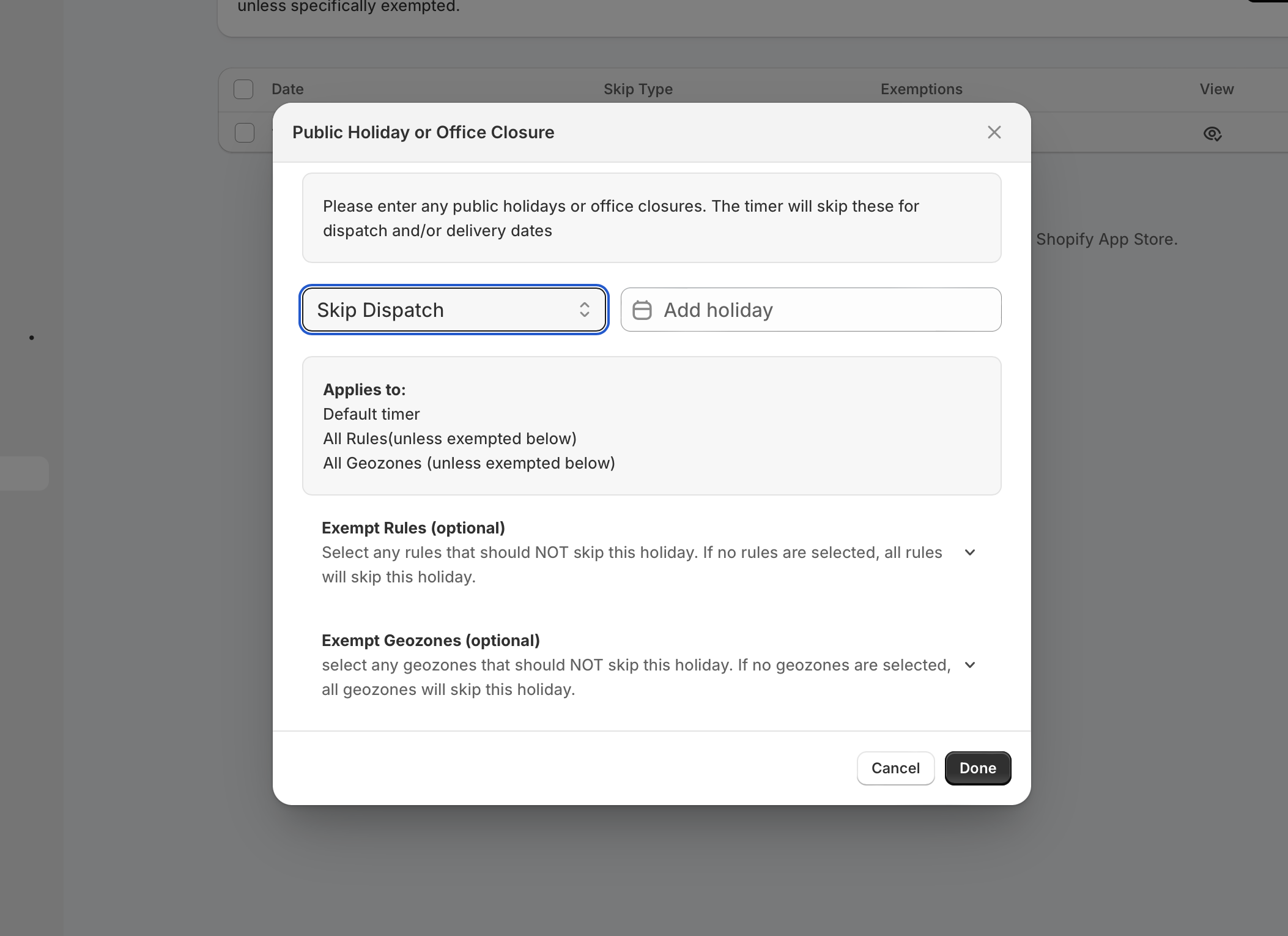
- In the Public Holiday or Office Closure modal, select the date using the Add holiday date picker.
- Choose a Skip Typefrom the dropdown:
- Skip Dispatch — skips the dispatch/shipping date only.
- Skip Delivery — skips the delivery date only.
- Skip Both — skips both dispatch and delivery dates.
- (Optional) Under Exempt Rules, select any rules that should not skip this holiday. If none are selected, all rules will skip it.
- (Optional) Under Exempt Geozones, select any geozones that should not skip this holiday. If none are selected, all geozones will skip it.
- Click Done to save the holiday.
Managing Existing Holidays
All saved holidays appear in a table on the Holidays page showing the Date, Skip Type, and any Exemptions. Click the view icon to review or edit a holiday's details.
Notes
Important: Holidays apply globally by default. Use the exemption options only if specific rules or geozones should remain active on a holiday.
Remember: Remember to add holidays ahead of time so the timer reflects accurate delivery estimates for your customers.
Was this article helpful?
That’s Great!
Thank you for your feedback
Sorry! We couldn't be helpful
Thank you for your feedback
Feedback sent
We appreciate your effort and will try to fix the article