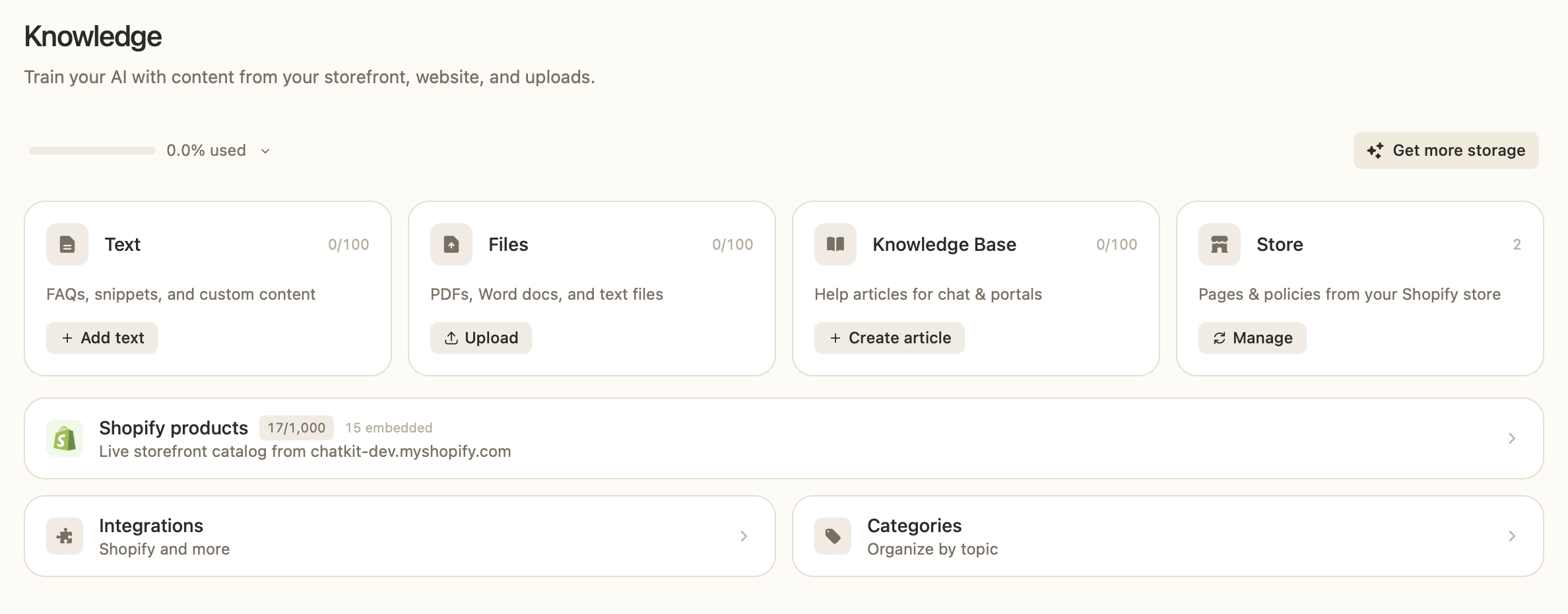
Once you install Chatkit on your Shopify store, it automatically pulls in your store content so the AI can answer customer questions accurately. There's nothing to configure — here's what gets synced and how it stays up to date.
What gets synced
- Products — your live storefront catalog (title, description, vendor, type, price, and image). Only active products are indexed for AI answers; draft and archived products are skipped.
- Pages — published pages from Online Store › Pages, such as About, FAQ, and shipping info.
- Policies — your refund, shipping, privacy, and terms policies from Settings › Policies. These let the AI answer support questions consistently.
How syncing works
- Products sync automatically. When you create, update, or delete a product in Shopify, the change flows into Chatkit within a minute or two.
- Pages and policies sync on demand. Shopify doesn't send live updates for these, so use the Resync now button on the Store tab after you edit them.
Embedding status
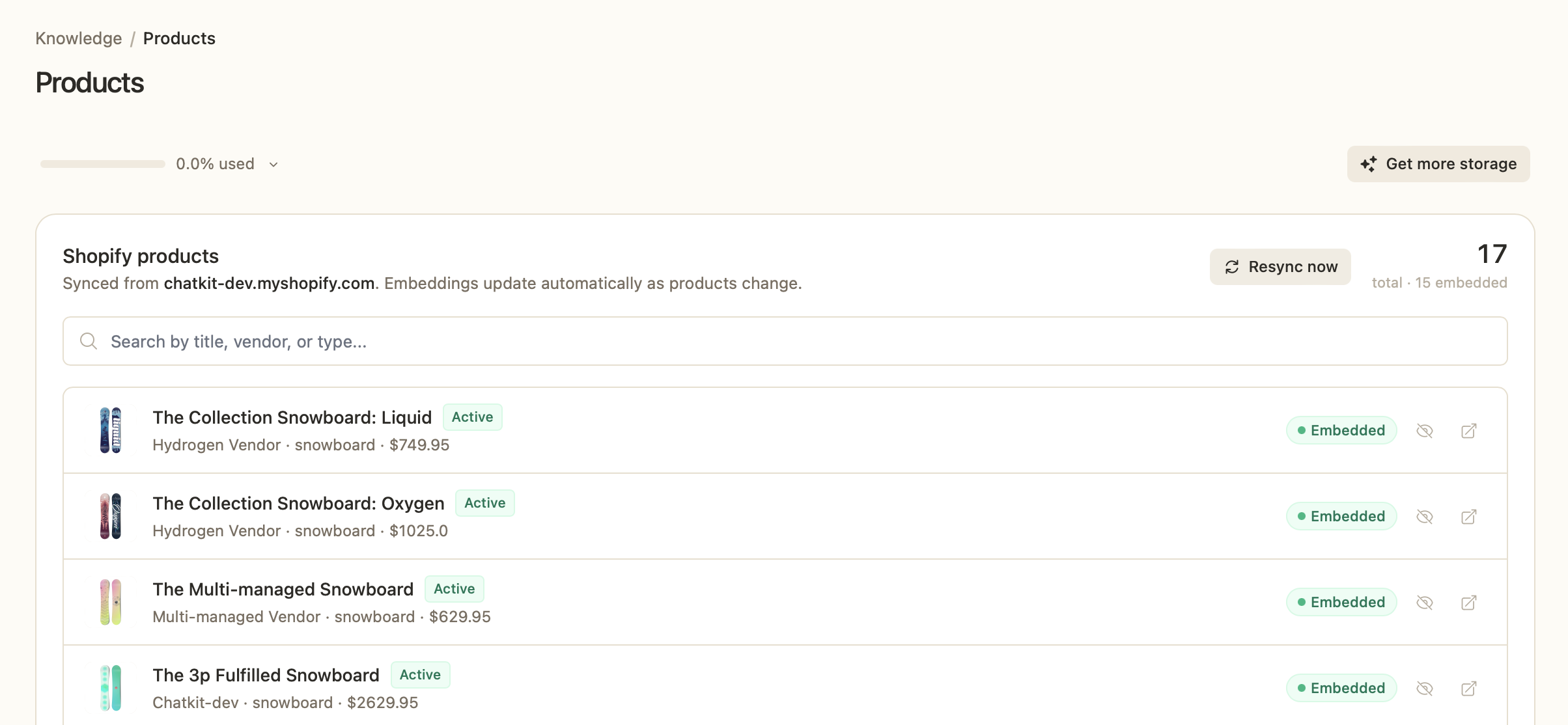
After content syncs, Chatkit "embeds" it so the AI can search it. You'll see a status label next to each item:
- Embedded — ready and being used in answers.
- Embedding — processing; this only takes a moment.
- Failed — something went wrong. Hover the label for details, or try a resync.
- Not indexed — the product is draft or archived, so it's intentionally skipped.
Excluding a product from the AI
Want to hide a specific product from answers and recommendations? On the Products tab, click the eye icon to exclude it. Its embedding is removed and the AI will ignore it until you re-include it.
Plan limits
Each plan includes a product sync cap. If your catalog exceeds your plan's limit, new products stop syncing until you upgrade. You'll see an "Approaching cap" or "Over plan cap" warning on the Data screen before this happens.
To force a refresh at any time, head to Dashboard › Data and use the Resync now button on the Products or Store tab.
Was this article helpful?
That’s Great!
Thank you for your feedback
Sorry! We couldn't be helpful
Thank you for your feedback
Feedback sent
We appreciate your effort and will try to fix the article
