
Adding your own knowledge to Chatkit
Beyond what's synced from Shopify, you can add your own content so Chatkit's AI can answer questions specific to your business. You'll find everything under Dashboard › Data. There are four ways to add knowledge.
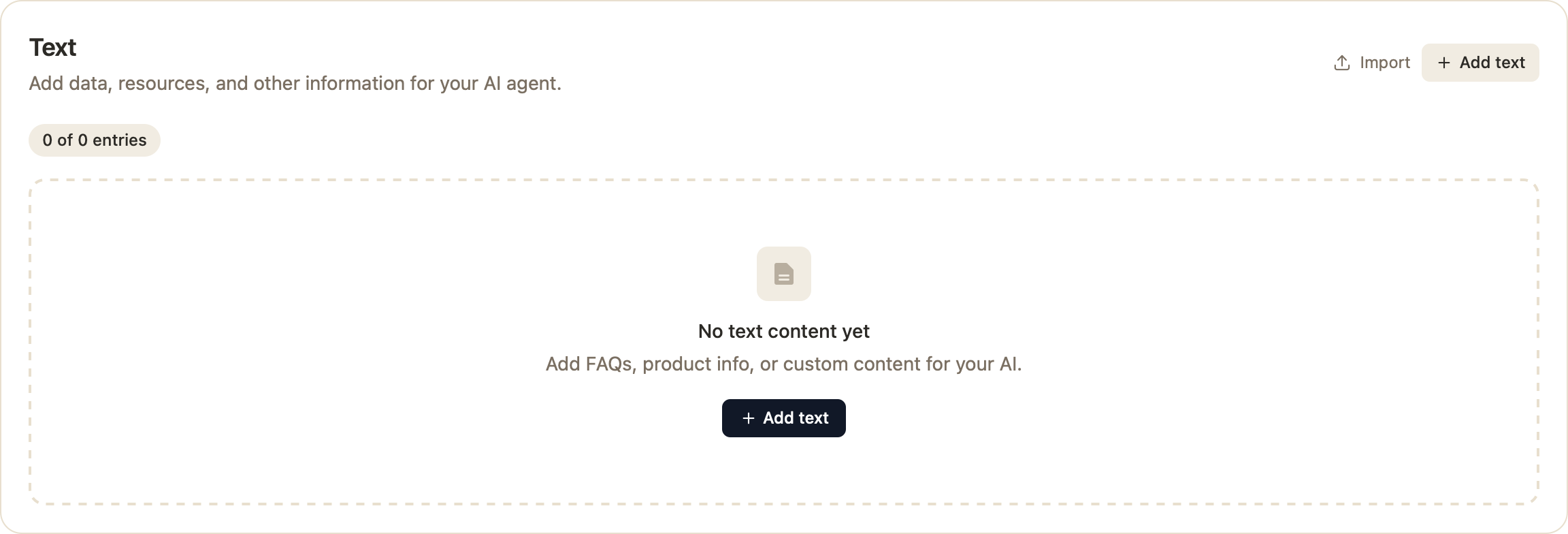
1. Text
The fastest way to add a quick answer. Use it for FAQs, snippets, and custom content — for example "Do you offer gift wrapping?" with the answer. Go to the Text card and click Add text.
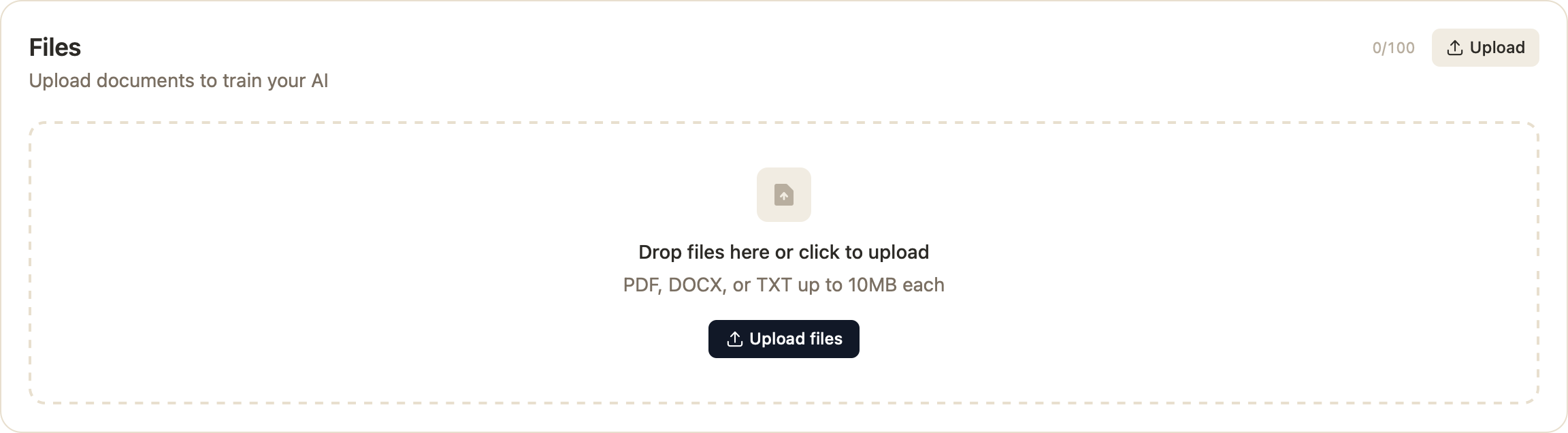
2. Files
Upload documents to train your AI. Drag and drop or browse for PDF, DOCX, or TXT files (up to 10MB each). Great for product manuals, spec sheets, or internal guides. Go to the Files card and click Upload.
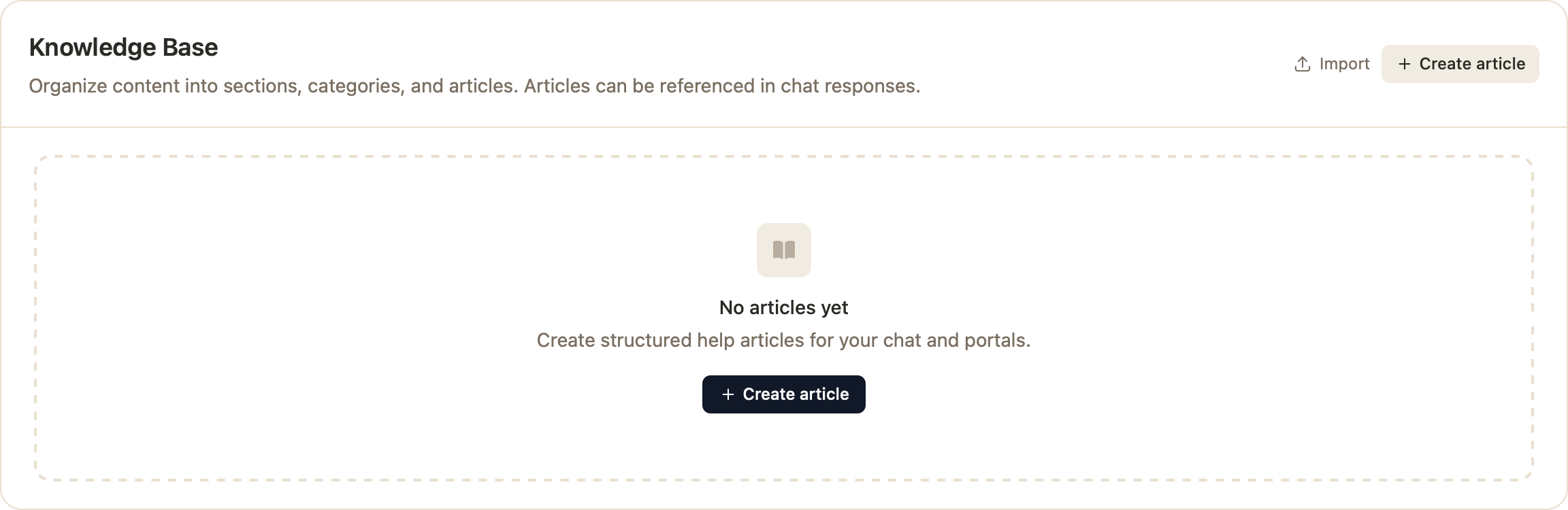
3. Knowledge Base articles
Build structured help articles organized into sections and categories. These can be referenced directly in chat responses and shown in your help portal. Each article can be saved as a Draft or Published — only published articles are used by the AI.
- Go to the Knowledge Base card and click Create article.
- Organize articles by dragging sections, categories, and articles into the order you want.
- Already have content elsewhere? Use Import to bring it in.
Keeping it organized
Use Categories to group content by topic. A tidy knowledge base helps the AI find the right answer faster and makes content easier to maintain.
Good to know
- Each plan includes limits on text entries, files, and published articles — you'll see your usage (e.g. 3/10) on each card.
- New content is embedded automatically and ready for the AI within moments of being added or published.