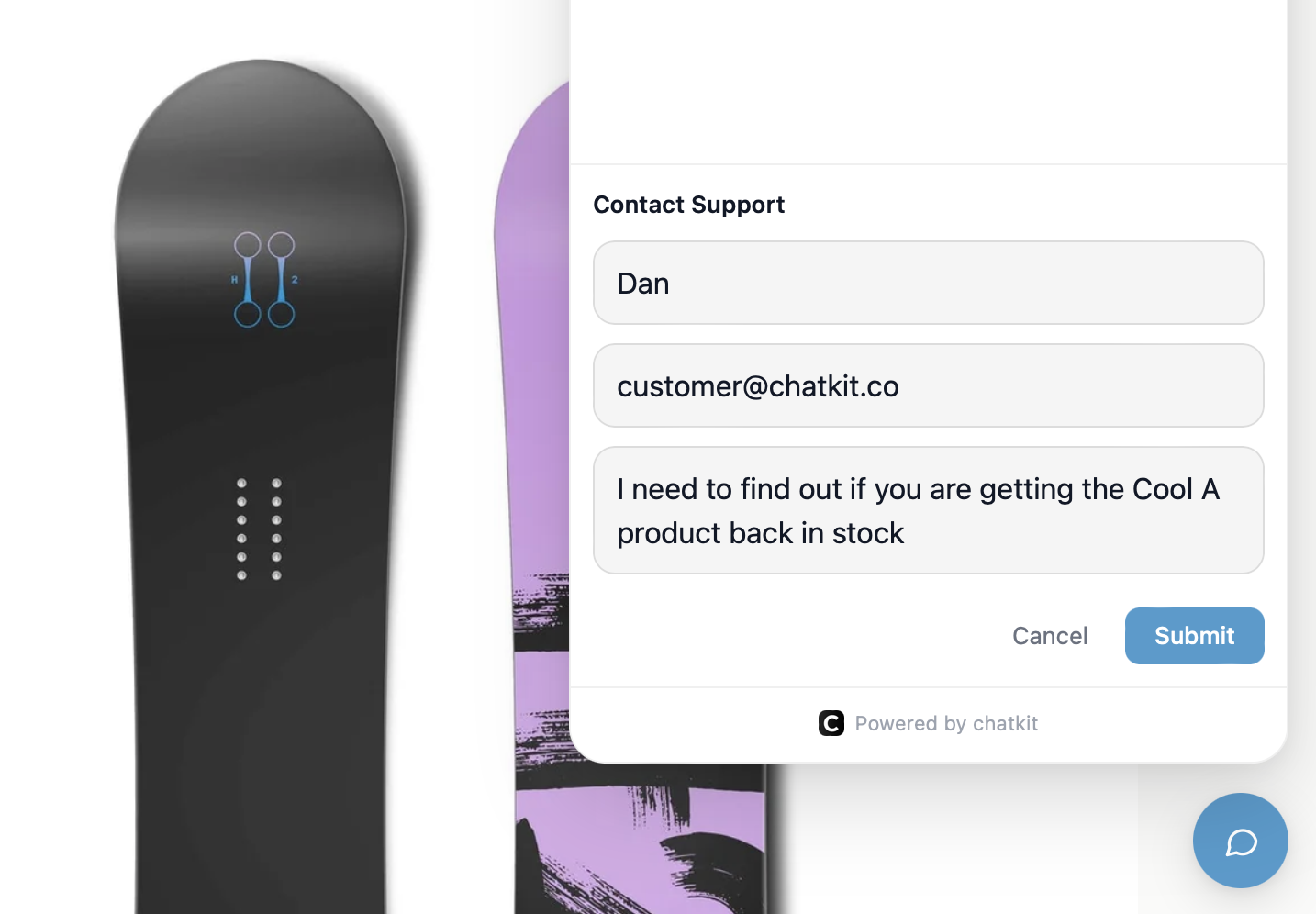
When you use the built-in helpdesk, all support requests land in your Inbox (Dashboard › Inbox). Tickets can arrive from the chat widget, your website, or an email to your support address — all handled in one place.
Don't see tickets? Make sure the built-in helpdesk is enabled under Settings › Tickets.
Understanding statuses
- New — a fresh ticket that hasn't been actioned yet.
- In Progress — you're working on it. A red indicator flags tickets where the customer is awaiting your reply.
- Resolved — the issue is closed. Resolved tickets can also help train your AI.
Finding tickets
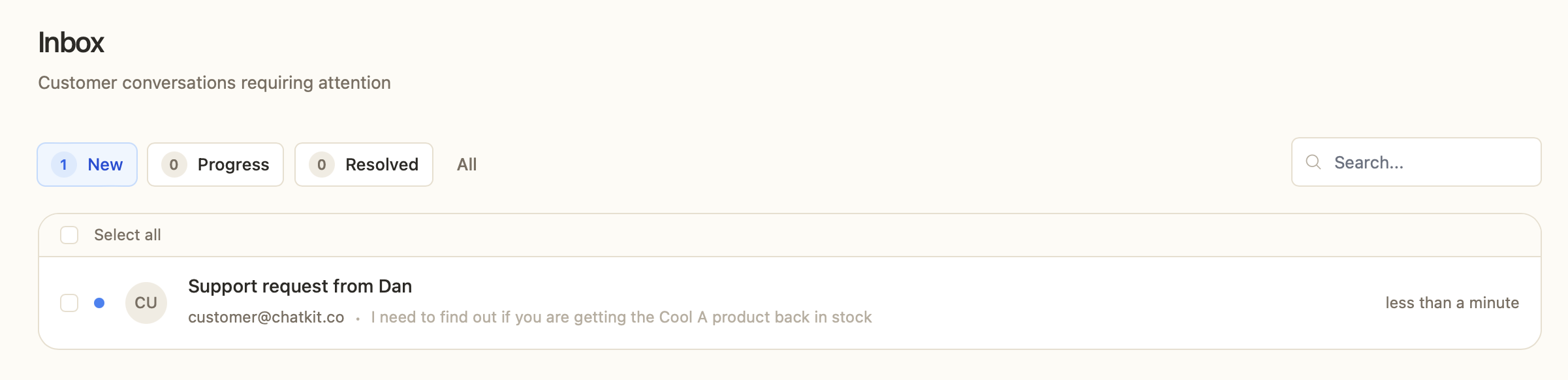
- Use the New / In Progress / Resolved / All filters at the top, each showing a live count.
- Search by keyword, customer, or content.
- Select multiple tickets with the checkboxes to bulk mark them In Progress, Resolved, or delete them.
Working a ticket
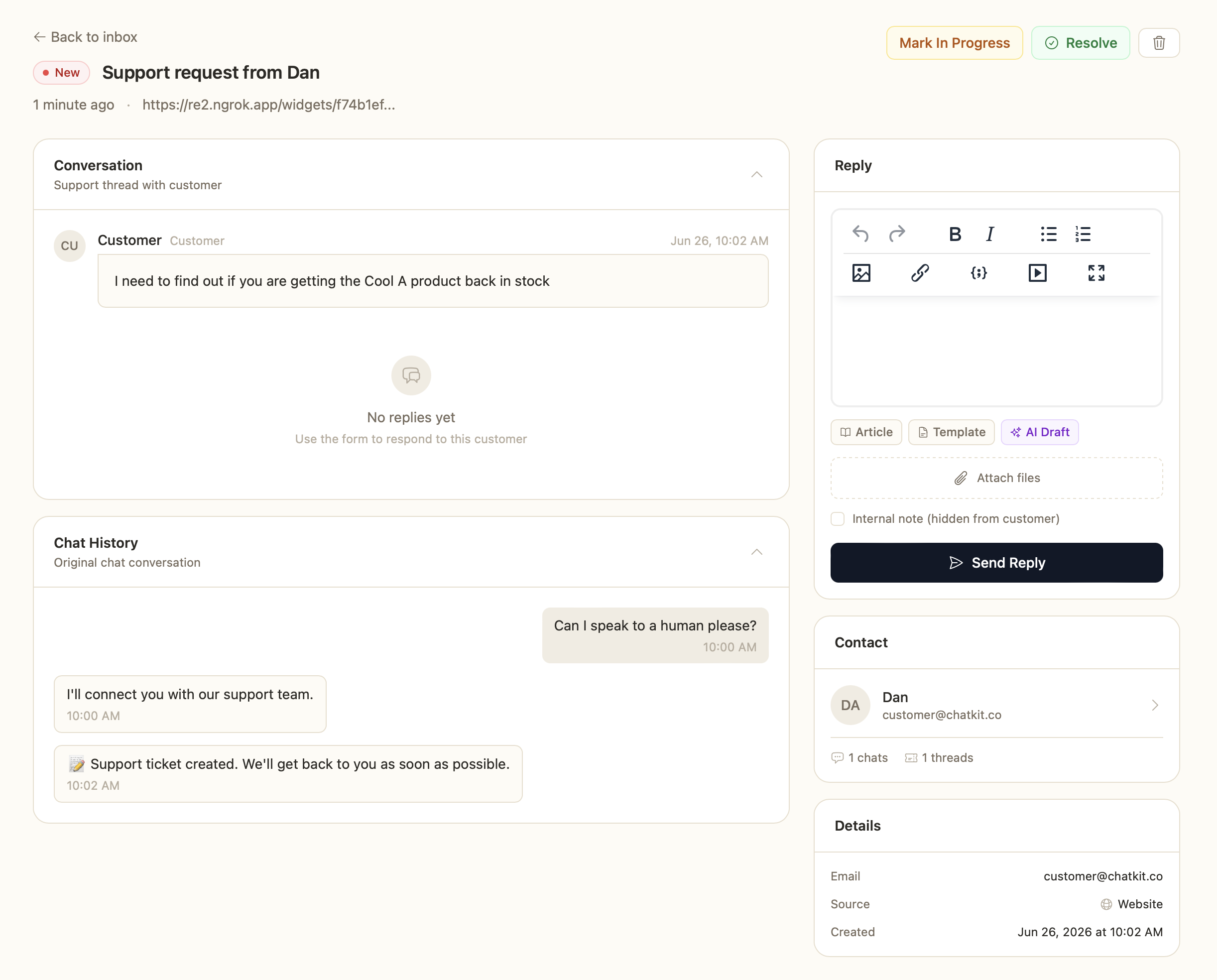
Click any ticket to open it. You'll see the full conversation thread, and for chat-based tickets, the original chat history for context.
Replying
Use the reply panel on the right to respond with a rich text editor. You have several tools to speed things up:
- AI Draft — generate a suggested reply from your knowledge base and past resolutions, then edit before sending.
- Article — insert a link or content from a knowledge base article.
- Template — drop in a saved canned response.
- Attach files — add images or documents (drag and drop supported).
- Internal note — tick this to leave a note for your team that the customer never sees.
Click Send Reply to respond. Replies are emailed to the customer, and their responses thread back into the same ticket.
Changing status
- Mark In Progress when you start working on a New ticket.
- Resolve when the issue is handled.
- Delete to remove a thread permanently (this can't be undone).
Customer context
Each ticket's sidebar shows the linked Contact — their name, email, and how many chats and threads they've had with you — plus Details like the source (Website, Email, or Chat) and when it was created. Click the contact to see their full history.
Tips
- Start with the AI Draft, then add a personal touch — it's usually faster than writing from scratch.
- Turn frequent answers into templates so your whole team replies consistently.
- Resolve tickets promptly — it keeps your Inbox clean and feeds better examples into your AI's training.
Was this article helpful?
That’s Great!
Thank you for your feedback
Sorry! We couldn't be helpful
Thank you for your feedback
Feedback sent
We appreciate your effort and will try to fix the article