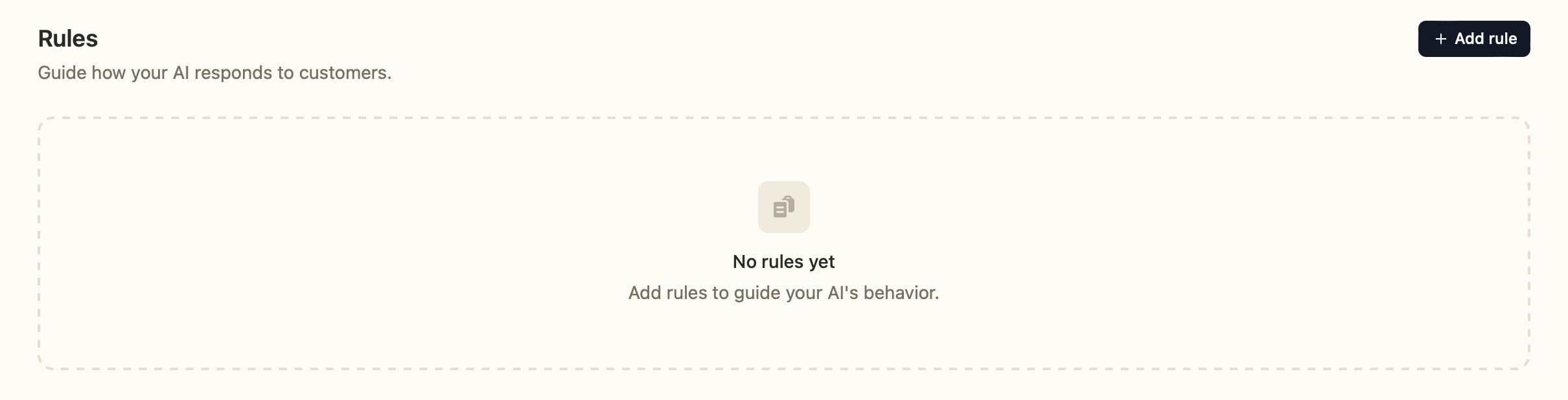
Rules let you guide how your AI responds to customers — its tone, boundaries, and behavior. They're plain-English instructions the AI follows on every conversation. You'll find them under Dashboard › Settings › Rules.
Adding a rule
- Go to Settings › Rules.
- Click Add rule.
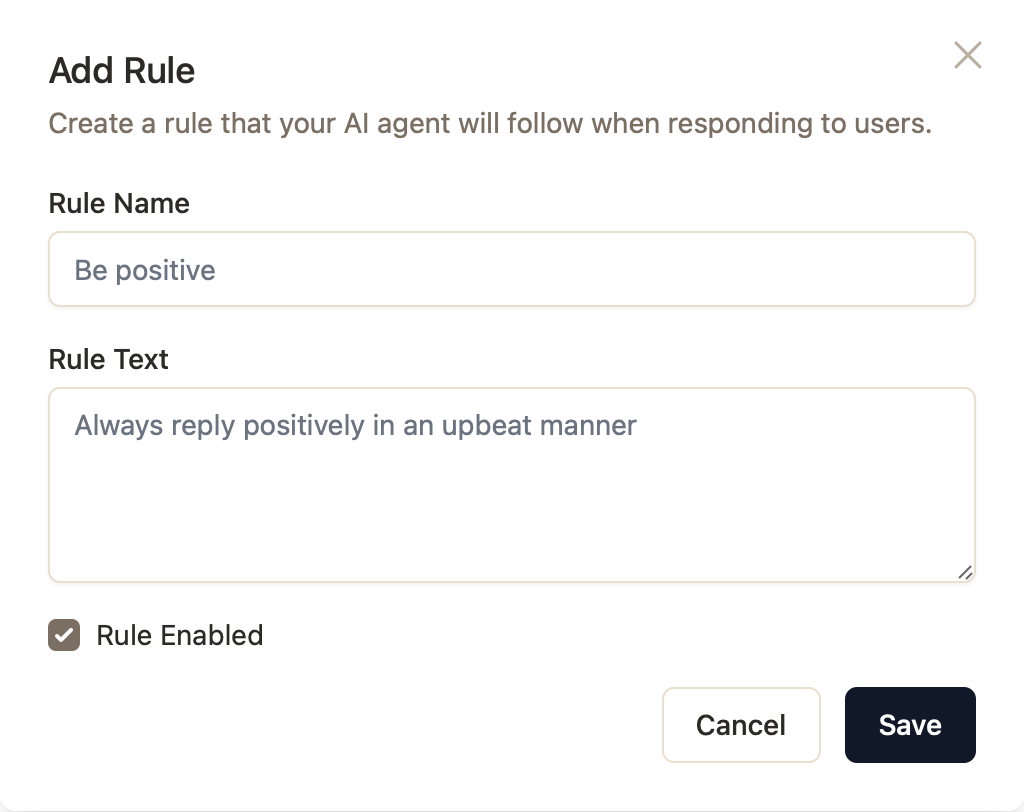
- Give it a short Rule Name (e.g. "Be positive").
- Write the Rule Text — the actual instruction (e.g. "Always reply positively in an upbeat manner").
- Leave Rule Enabled checked and click Save.
Managing rules
- Each rule shows an Active or Disabled status.
- Use the pause/play button to toggle a rule on or off without deleting it.
- Use the trash icon to remove a rule entirely.
Example rules
- Tone: "Always be warm, friendly, and concise. We use terms like 'hey' and 'sure'"
- Boundaries: "Never give medical or legal advice on our products — suggest contacting support instead."
- Brand voice: "Avoid jargon and keep answers under three sentences where possible."
- Promotions: "Only mention discounts if the customer asks about pricing.", "Mention our SAVE5 discount if the customer says they need a discount to checkout"
- Other use cases: Rules are very powerful. You can guide the assistant to act, provide information and guide customers in almost any situation. Draw attention to specific urls. products, collections or pages in a certain situation.
Tips
- Keep each rule focused on one behavior — several small rules work better than one long one.
- Write rules as clear, direct instructions, as if briefing a new support agent.
- Disable rather than delete when testing, so you can compare results.
Was this article helpful?
That’s Great!
Thank you for your feedback
Sorry! We couldn't be helpful
Thank you for your feedback
Feedback sent
We appreciate your effort and will try to fix the article